


A newer phone won’t necessarily make calls easier to manage. Remote call control lets staff handle calls through compatible devices. The right setup depends on how your business handles calls and which equipment your team uses.
For Australian businesses, flexible call handling can support teams working across office and remote settings. Consider how staff answer and hand over calls when their work locations change.
This guide explains how remote call control works, how device compatibility shapes your options, and what to consider when choosing a setup. You’ll learn how to assess your team’s needs and select an approach that supports business continuity.
Key Takeaways
- Match the control method to your desk phone, computer, headset and calling platform before choosing a setup.
- A handset lifter can let a wireless headset answer or end calls on a desk phone, while headset range affects where you can take calls.
- Compare options by how well they support your team’s daily workflow, remote working needs and future changes.
- Test essential actions such as answering, ending, muting and transferring calls so staff can use the controls confidently.
- Explore small business phone system options when you need a communications setup that fits how your team works.
Desk phone and computer compatibility
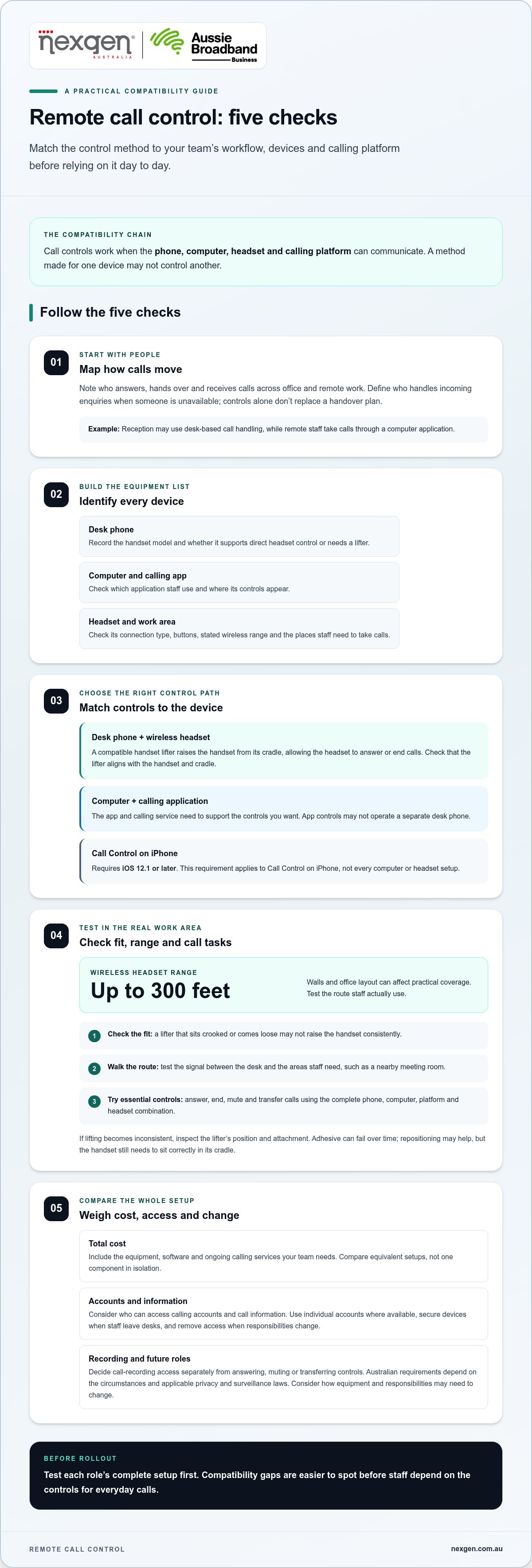
Call controls work when the phone, computer, headset and calling platform can communicate. A desk phone may use a handset lifter, while a computer application may provide on-screen controls. These methods aren’t interchangeable. For example, staff answering through a desk phone need a compatible way to operate that handset.
A handset lifter raises a desk phone handset from its cradle, allowing users to answer or end calls through a wireless headset. The phone and lifter must work together physically. Check the handset’s position, cradle shape and lifter alignment. If the lifter sits crooked or comes loose, it may not lift the handset consistently.
Wireless range affects where staff can take calls. A headset with a range of up to 300 feet allows calls to be taken within that range. Walls and office layout can affect practical coverage. Test the route between the desk and the areas staff need to use. For example, someone walking from reception to a nearby meeting room should test the signal along that path.
Computer compatibility depends on the calling application and device. A control designed for an application may not operate a separate desk phone. For example, a worker using a computer calling app needs that app and service to support the controls they plan to use. Call Control on iPhone requires iOS 12.1 or later. That requirement applies to Call Control on iPhone, not every computer or headset arrangement.
- Desk phone: identify the handset model and whether it supports direct headset control or needs a lifter.
- Computer: identify the calling app and where its controls appear.
- Headset: check its connection type, buttons and stated wireless range.
- Work area: test calls from the locations staff use.
The adhesive on a handset lifter can fail over time, leaving it loose or misaligned. If lifting becomes inconsistent, inspect its position and attachment. Repositioning may restore the physical connection, but the handset still needs to sit correctly in its cradle.
Test the complete combination of phone, computer, calling platform and headset before adopting it across the team. A receptionist might use a desk phone and lifter, while a colleague handles calls through a computer application. Compare the controls and limitations of each setup. Testing can reveal compatibility gaps before staff rely on the equipment for everyday calls.
Choosing a remote call control solution
Choose a setup by weighing your team’s workflow, equipment, privacy practices and ongoing costs. Controls should suit how staff handle conversations, not add unnecessary steps to their work.
Australian requirements for recording calls and handling personal information depend on the circumstances and applicable privacy and surveillance laws. Treat recording decisions separately from choices about answering, muting or transferring calls.
Service costs
Service costs include the equipment, software and calling services used to handle calls. Understanding the full mix helps you compare options against your business needs.
The total depends on what your team needs. Desk phones, computers, headsets, handset lifters and calling software may all affect your budget. A team keeping its existing phones may need different equipment from one moving call handling onto computers.
List the equipment and functions required for each role before comparing options. A receptionist may use desk-based equipment, while remote staff may handle calls through computers. Include required equipment and ongoing calling services in your assessment. Compare equivalent setups rather than judging one headset or software component in isolation.
Also consider how the setup may need to change as responsibilities or work patterns shift. If a new team member needs a different device, the system and associated equipment must accommodate that role. A clear inventory helps distinguish initial requirements from future adjustments without assuming every staff member needs identical equipment.
Security and privacy risks
Security and privacy risks arise when unauthorised people can access calling accounts, controls or call information. Managing access matters because business conversations may contain personal or commercially sensitive details.
For example, a shared computer left signed in could give another user access to the active calling account. Use individual accounts where available, secure devices when staff leave their desks, and remove access when responsibilities change. Decide separately who can record calls and access the resulting information.
Australian businesses should consider what information calls may contain, who can access it and how it is handled. Set clear procedures for recording and access. The circumstances and applicable requirements determine the privacy steps an organisation needs to take.
Compare options against practical criteria:
- Compatibility: match phones, computers, headsets and calling platforms.
- Call tasks: test answering, ending, muting and transferring.
- Work patterns: account for office, remote and shared workspaces.
- Access: consider how accounts and call information are managed.
- Total cost: include equipment, software and ongoing calling services.
Consider a business with a reception desk and remote staff. Reception may need desk-based call handling, while remote staff may use computer calling. Map each workflow and test how enquiries move between people before settling on an arrangement. For organisations expanding these workflows into hybrid conference spaces, collaboration providers such as Averett Pte. Ltd. can assist with integrating intelligent meeting room audio and video technology.
Flexible controls can support resilience when they fit established handovers and staff responsibilities. They don’t replace a plan for incoming enquiries when someone is unavailable. Define who handles each type of call alongside the technology, so staff can respond clearly when work arrangements change.
Remote call control overview
Remote call control lets someone manage a business call using controls on a connected phone, computer or headset. It changes how the user interacts with a conversation, not where incoming calls are directed.
For example, a staff member can use a headset control while reviewing a customer file. The call stays within the business calling service, while the control sends an instruction to that service.
How call control works
A control sends an instruction to the phone or calling application handling the conversation. The system carries out an available action, such as answering, muting or ending a call. The control might be on a headset, displayed in a computer application or connected to a desk phone.
The equipment and calling platform determine which actions are available. A headset button may communicate with a computer application, while a desk-phone setup may use a handset lifter. Remote call control depends on how the phone and control method connect, not simply on owning a headset.
Consider an accountant reviewing a client record during a conversation. If the calling application supports call controls, the accountant can manage the call without reaching for another handset. A receptionist using a desk phone may follow a different process, even if both staff members wear headsets.
Setting up remote call control
Setting up remote call control means connecting a suitable control, such as a headset or computer application, to the calling system. Matching the setup correctly matters because staff need reliable access to the actions their roles require.
First, identify where each person handles calls, then connect the appropriate control and test it with an internal call. For example, check that a headset can answer a test call before using it for customer conversations. Record any device-specific steps for staff who share workstations.
Managing calls remotely
Managing calls remotely means using a connected control to act on a conversation without operating the phone directly. This can help a team leader handle a call while working through documents or moving between tasks.
Depending on the system, controls may answer, end or mute calls. Transferring is different: it moves the caller to another person or destination. Staff should know which control performs each action, especially when switching between a headset and an application.
How does remote call control differ from call forwarding? Call control lets someone manage an active conversation, while call forwarding directs incoming calls to another number or destination. For example, a user may answer through a headset, while a forwarding rule sends unanswered calls elsewhere.
These functions support different parts of a continuity plan. A worker away from their desk may use a headset to manage an active conversation, while call routing determines where new calls go. Remote call control doesn’t replace forwarding, and forwarding doesn’t provide the user’s call controls.
- Call control: lets a user act on an active conversation.
- Call forwarding: directs an incoming call to another destination.
- Calling service: carries the conversation and determines available functions.
For an Australian business, map each function to the staff who need it. A receptionist may handle incoming calls, while a colleague manages transferred enquiries. This distinction keeps equipment controls separate from decisions about call routing.
How to set up remote call control on a phone or computer?
Set it up by matching the calling service, device and control method, then testing each call action. The exact process depends on whether calls run through a desk phone, computer application or mobile phone.
Start by identifying where calls are handled. A desk phone may need a compatible headset connection or handset lifter. A computer setup uses the calling application and its supported controls. For example, a receptionist using a desk phone and a hybrid worker using a computer may need separate setup paths.
- Identify the calling device. Note whether each person answers calls on a desk phone, computer or mobile phone. Record the phone model or application name so you can match the control method to it.
- Choose the control connection. For a desk phone, connect the headset or lifter as designed. For a computer, install or open the calling application and connect the headset using its supported method.
- Check device requirements. For example, Call Control requires iOS 12.1 or later on iPhone. Confirm the relevant software requirement before setting up that feature on a staff member’s phone.
- Check the call-control settings. Open the phone or application settings and look for headset or call-control options. Select the connected device if the application provides that choice.
- Test a call. Place an internal test call, then try answering and ending it through the chosen control. Check that the phone or application responds as expected.
For a handset lifter, position it so it raises the handset cleanly from its cradle. Test the lift several times, then check that the handset returns to its resting position. If the lifter comes loose or becomes misaligned, it may stop working properly. Adhesive can fail over time, so include a visual check when troubleshooting inconsistent operation.
For a computer setup, sign in to the correct calling account before testing. A headset may connect to the computer while call handling remains in the application. Confirm that the application is open and can receive a test call. If a control doesn’t work, check the headset connection, selected audio device and application settings in turn.
Test the setup from the locations staff actually use. A wireless headset with a range of up to 300 feet allows calls to be taken within that range. Check the route between the desk and work areas, since walls and office layout can affect practical coverage. Record the working setup for each role, including receptionist, office-based staff and remote workers.
How to use remote call control to answer, end, mute, or transfer calls?
Use the control assigned to your connected headset, desk phone or calling application. Available actions depend on the system, so test each control before relying on it during a customer call.
To answer: Press the headset control or select the answer option in the calling application when a call arrives. For example, a staff member reviewing a booking on a computer can answer through the application instead of reaching for a separate handset. Check the call screen or audio prompt to confirm the conversation is active.
To end: Use the headset’s call button or the application’s end-call control. Confirm the call has disconnected before starting another task. In a shared reception area, this simple check helps prevent a caller from remaining connected while staff turn to another customer.
To mute: Use the mute control on the headset or in the calling application. Mute is useful when a nearby conversation or keyboard noise might distract the caller. Check the application’s mute indicator before speaking again. Some setups show the status on screen, while others use an indicator on the headset.
To transfer: Select the transfer function in the calling system, then choose or enter the intended colleague or destination. Follow the system prompts. For example, a receptionist might transfer a billing enquiry to the accounts team. If the system offers a consultative transfer, speak with the receiving colleague before connecting the caller. A direct transfer sends the caller on without that conversation.
Keep the actions distinct. Muting temporarily stops your microphone from carrying your voice; it doesn’t end or transfer the call. Ending disconnects the conversation, while transferring moves the caller elsewhere. A receptionist handling a delivery enquiry might briefly mute to speak with a nearby colleague, then return to the caller or transfer them to the right person.
Before using these controls with customers, practise with a colleague. Make a test call and work through answering, muting, unmuting, transferring and ending. Ask the colleague to confirm what they can hear after each action. This can catch a muted microphone or mistaken disconnection before a live conversation.
During a real call, pause briefly after selecting an action. Check the application or headset indicator, then confirm the caller can hear you or has reached the intended person. If a control fails, use the calling application or phone directly to continue the conversation. Record the issue and device involved so the setup can be reviewed without delaying the caller.
For teams handling regular customer calls, document the controls staff use and the transfer path for common enquiries. A short internal guide can show which button answers, where mute appears and how to reach another team member. Keep the guide aligned with the phone or application used at each workstation. For teams running dedicated call centre operations, platforms like DialGame.AI also pair call handling with gamified predictive dialling to help lift agent productivity.
Nexgen Australia: Small Business Phone Systems
Nexgen Australia provides Small Business Phone Systems and tailored Small Business VoIP Solutions for businesses reviewing how their teams handle calls. If staff use a mix of desk phones and computers, the phone system is central to deciding how call controls fit daily workflows.
Consider a business phone system when planning a change to call handling, supporting hybrid work or reviewing whether your current setup suits your team. Nexgen also provides Office Phone Systems and VoIP Phone Systems for different workplace requirements. Start by mapping who answers calls, which devices they use and how calls move between staff.
Contact Nexgen Australia to discuss a phone system for your business.
Plan a call setup your team can rely on
Make your next step a practical review of how calls move through your business. Identify who handles incoming enquiries, which devices they use and which handovers need to work during a busy day. Then decide where remote call control fits into that workflow, rather than treating it as an isolated headset feature.
A phone system review can also help clarify what your team needs as its working arrangements change. Nexgen Australia offers Small Business Phone Systems, Small Business VoIP Solutions and Office Phone Systems, giving Australian businesses options to consider for their communications needs.
If you’re ready to discuss a phone setup that suits your team’s call handling, contact Nexgen Australia. A clear plan can help you move forward with confidence.
Frequently Asked Questions
How can smarter call control improve business resilience?
Smarter call control can help staff manage conversations when their work location or daily responsibilities change. For example, a team member working away from the office can use the business calling setup on their computer, rather than relying on a colleague to answer every call. Pair this with a clear plan for unanswered calls and staff handovers, so customers know how their enquiries will be managed during disruption.
What does remote call control mean?
Remote call control means managing a business call using controls on a connected device instead of operating the phone directly. For example, a staff member might use a headset button while reviewing a customer record. It concerns actions taken on a call, not automatically redirecting incoming calls to another number. This distinction helps businesses choose the right feature for staff managing conversations across different devices.
How does remote call control work?
A connected control sends an instruction to the phone or calling application handling the conversation. The system carries out the requested action if that function is available. For example, a user presses a headset control to answer, while the calling application manages the conversation. The control must be associated with the correct device and calling account. A test call can help identify mismatched settings before staff use it with customers.
What devices and software support remote call control?
Support may involve a compatible desk phone, computer calling application, headset or handset lifter. The suitable combination depends on how calls are handled and which controls the phone or application supports. For example, a desk-based receptionist may use a handset lifter, while a colleague using a computer application relies on its on-screen controls. Check each role’s equipment and call workflow rather than assuming one control method suits everyone.
Which Australian phone and VoIP providers offer remote call control?
Australian businesses can explore business phone and VoIP systems that support call handling across connected devices. Nexgen Australia provides Small Business Phone Systems, Small Business VoIP Solutions and Office Phone Systems. Available controls depend on the phone system, application and connected equipment selected. Compare the functions staff need, such as answering or transferring calls, with the devices they use each day.