


To set up business VoIP call forwarding, choose a destination and activate the rule in your phone system settings or with an assigned dial code. Set the condition, such as a busy line or no answer, then save and test the route. Dial codes vary by system, so use the code provided for your service.
Call forwarding keeps calls moving when staff are away from their desks, but a simple redirect isn’t the only option. This guide covers forwarding, IVR menus, and after-hours and holiday schedules. You’ll also learn how to test each call path and avoid common setup issues, so customers reach the right person or team without unnecessary transfers.
Key Takeaways
- Choose whether calls should ring another extension, an external number or voicemail, then set the conditions that trigger the redirect.
- Test each forwarding path and align the no-answer timing so calls reach the intended destination.
- Use IVR menus and call-routing rules to direct callers to the right team without relying on a single forwarding destination.
- Set business-hour, after-hours and holiday schedules to match when your team can answer calls.
- Phone codes can activate forwarding quickly, but the correct code depends on your phone system.
How Do I Set Up Call Forwarding With VoIP?
Choose where calls should go, set the condition that triggers forwarding, then test the route. Your VoIP phone system can send incoming calls to an extension, voicemail or external number.
-
Understand how call forwarding redirects calls
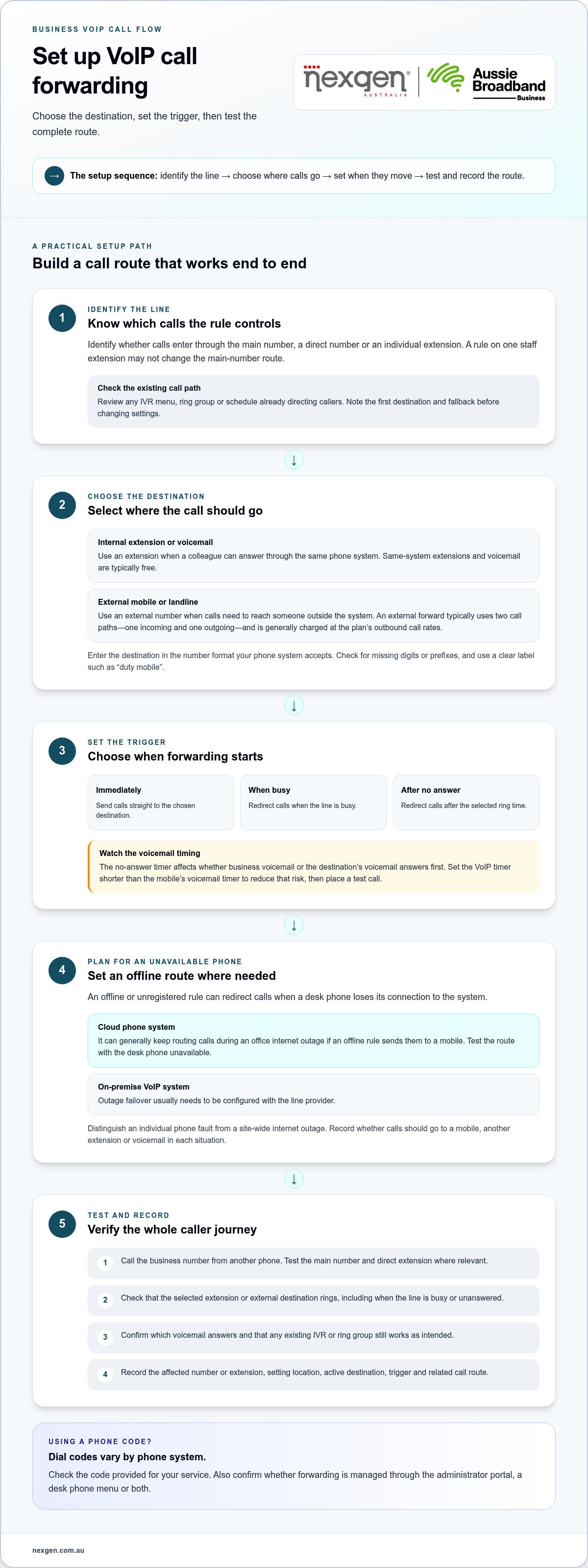
Identify the incoming number or extension whose calls you want to redirect. The phone system applies a rule and sends calls to the selected destination when that condition is met. For example, a business number might ring an internal team extension before sending a call to voicemail. Check which line the rule controls so you don’t change call handling for other staff.
- Select an internal or external destination. Choose an extension if a colleague can answer through the same phone system. Choose an external number if calls need to reach a mobile or landline outside the system. An external forward typically uses two call paths, one incoming and one outgoing. This can help you decide whether a staff member’s mobile app or a forwarded mobile number best suits the call flow.
- Set the condition that triggers the route. Choose whether calls should forward immediately, when the line is busy or after no answer. The no-answer timer affects whether callers reach the business voicemail or the destination’s voicemail first. Set the VoIP timer shorter than the mobile’s voicemail timer to reduce that risk. Then place a test call and note which voicemail answers.
-
Set forwarding for unavailable devices
Configure an offline or unregistered rule for a desk phone that loses its connection to the system. Registration means the phone is connected and ready to receive calls. A cloud phone system can generally keep routing calls during an office internet outage if an offline rule sends them to a mobile. Test the route with the desk phone unavailable and confirm the call reaches its intended destination.
- Distinguish device faults from site outages. An individual phone may be offline even when the office connection is working. A site-wide internet outage can affect several desk phones at once. For an on-premise VoIP system, outage failover usually needs to be configured with the line provider. Record the intended route for each situation so staff know whether calls should go to a mobile, another extension or voicemail.
-
Check forwarding settings and call charges
Review your phone system’s instructions for configuring call routes and any codes used to activate them. The available facts do not establish a specific ACMA rule for call-forwarding settings, so avoid assuming that a particular dial code is an Australian requirement. VoIP systems generally charge external mobile or landline forwards at the plan’s outbound call rates; same-system extensions and voicemail are typically free.
- Test the full route before relying on it. Call the business number from another phone and confirm the selected extension or external destination rings. Test what happens when the destination is busy or unanswered, and check which voicemail receives the message. For external forwards, review the plan’s outbound call rates as part of your call-handling setup. Note the active destination and condition for future updates.
Call forwarding setup
Before changing call settings, check how your phone system handles extensions, devices and existing routes. Compatibility depends on where the setting applies and how it interacts with the rest of your call flow.
-
Check call forwarding compatibility
First identify whether calls enter through a main number, a direct number or an individual extension. Then check that the system lets you manage forwarding at that level. A rule for one staff extension may not affect the main number. Review existing IVR and ring-group routes too, so the new setting doesn’t conflict with the way callers currently reach a team.
- Confirm which devices can use the setting. Check whether forwarding is controlled through an administrator portal, a desk phone menu or both. A handset may display only the settings available to its extension, while an administrator view can show broader call handling. For example, reception staff might be able to manage their own extension but not change the organisation’s main-number route.
- Check how existing routes interact. Look for forwarding settings already attached to the number or extension. An active IVR, ring group or schedule may direct a call before another rule applies. Write down the current call path, including its first destination and fallback, then identify where the new setting belongs. This helps avoid adding a rule at the wrong point in the caller journey.
- Use the system’s required number format. Enter external destinations in the format accepted by your phone system. A mobile or landline may require a particular dialling format, depending on the service settings. Check for missing digits, spaces or prefixes before saving. Use a clear destination label, such as “duty mobile”, so administrators can recognise its purpose later.
-
Configure and test VoIP forwarding
Make the change in the settings area that matches the relevant line, and note which extension or number it affects. Then test the route from an appropriate caller path, such as the main number and the direct extension. Check that the existing IVR or ring group still behaves as intended, rather than testing only the new destination in isolation.
- Check caller experience and administration access. Ask a colleague to follow the usual menu choices and describe what happens at each stage. Confirm the correct team receives the call and administrators can identify the setting later. If staff responsibilities change, update the destination label and record who owns the rule. Clear notes help prevent future edits from disrupting other extensions.
- Document the final configuration. Record the affected number or extension, the setting’s location and any related IVR or ring-group route. Keep the note with your phone-system administration records, not just in an individual employee’s messages. This context helps another administrator understand why the configuration exists before making changes.
VoIP features including IVR and call routing
Use call-routing rules to direct callers by menu choice, number, caller ID or schedule. VoIP calls can be routed by schedule, caller ID or ring group when those controls are available in the phone system.
-
Configure IVR and call routing
Build an IVR menu that lets callers choose a team, such as “press 1 for sales” or “press 2 for accounts”. Assign each choice to an extension or ring group, which sends the call to selected extensions. Set an alternate destination for when a team is unavailable. Keep menu options clear, and test every selection from an external phone.
- Choose a suitable ring group. Add the extensions of staff who can answer the same type of enquiry, then select how calls should reach them. Simultaneous ringing alerts several team members, while a sequential route tries one extension before another. For example, a business could direct incoming enquiries to its reception team. Make sure the group has a clear fallback if nobody answers.
-
Set caller ID and DID-based routing
Decide whether rules should use caller ID or the number dialled. Caller ID identifies the incoming caller’s number, while a DID is a direct number assigned to a person, team or service. For example, calls to a dedicated accounts number can go straight to accounts, while a caller-ID rule can send a known service contact to the relevant team. Keep a standard route for unmatched calls.
- Use caller ID rules carefully. Add a specific number or recognised range only when it serves a clear call-handling purpose. Caller ID may be unavailable or differ from the number a caller expects, so don’t make it the only way to reach a team. Test both a matching and an unmatched call. Confirm each reaches an appropriate destination, including when the intended staff member is unavailable.
-
Set geographical, multi-site and time-based routing
Map each business number or geographic area to the team that serves it. For a business with multiple offices, route each site’s direct number to its local team, then provide another destination when that team is unavailable. Add time-based rules for business hours and after-hours. Check the schedule uses the relevant site’s local time, especially when teams work across different time zones.
- Test the complete caller journey. Call each published number, try every IVR choice and check the caller ID displayed on the receiving phone. Repeat the test outside the normal schedule to confirm the after-hours route. If a team is in a meeting or doesn’t answer, verify that the fallback works. Record each number, destination and rule so future changes don’t disrupt other call paths.
After-hours and holiday schedules
Configure separate call routes for business hours, after-hours and holiday closures. A clear schedule tells callers where to go when your usual team is unavailable.
-
Set after-hours and holiday schedules
Create a business-hours schedule, then add an after-hours route for calls outside those times. For example, set the main number to forward to an on-call technician after 5pm. Add holiday dates separately, with a route that suits each closure. Check the schedule’s time zone and start and end times, especially when Australian teams work across different states.
- Choose a holiday message and destination. Decide whether callers should hear a recorded closure message, reach an on-call contact or leave voicemail. For a public holiday, your message could say when the office reopens and direct urgent enquiries to a designated number. Make sure the destination matches the message. If the recording promises an answer, route calls to someone assigned to respond.
- Set the after-hours coverage path. Identify who handles calls after the regular team signs off, then configure the main number to reach that person or team. A small business might forward urgent calls to its on-call mobile and send routine enquiries to voicemail. Confirm the on-call person can answer the external call and knows which business number callers dialled.
-
Configure after-hours coverage and voicemail
Set voicemail as the final destination when nobody can answer, and record a message that explains what callers should do next. For example, ask callers to leave their name, number and a brief reason for calling. Check that the correct team can access those messages when staff return. Avoid routing after-hours calls to a personal mailbox the business cannot monitor.
- Add a fallback for unavailable staff. Configure a secondary destination if the on-call person’s mobile is busy or unanswered. The fallback might be another team extension, a shared voicemail box or a recorded message. Test the route from the business number, including when the first destination is offline. This confirms callers won’t reach a dead end during a closure.
- Test schedule changes before they apply. Place a test call during business hours, after hours and on a configured holiday date. Confirm each call follows the intended route and voicemail records a message correctly. Review the schedule when opening hours or on-call responsibilities change. Remove expired holiday entries so an old closure rule doesn’t redirect calls on a normal working day.
Activating call forwarding with phone codes
Phone codes can let you change forwarding from a compatible handset without opening an administration portal. The exact sequence depends on your VoIP system, so follow its instructions rather than assuming a code from another service applies.
- Find the code list for your service. Check the phone system’s user guide or handset instructions for call forwarding. Look for separate actions to activate, cancel or check a forwarding rule. Don’t rely on a code remembered from a previous provider, as it may perform a different action or control another feature.
- Identify which line the code will affect. Some phone codes apply to the handset’s extension rather than the business’s main number. Check the display or line label before dialling, especially when one device can access several extensions. This helps prevent changing a colleague’s call handling or a shared reception line by mistake.
- Read the complete sequence before entering it. Note the order of the activation code, destination phone number and any confirmation key. Follow the system’s formatting instructions for an Australian mobile or landline. Don’t add prefixes or symbols from an unrelated example. A single incorrect character can cause the system to reject the command or save an unintended destination.
- Enter the command from the correct device. Use a handset connected to the relevant VoIP extension, then follow the stated sequence. Wait for the system’s confirmation tone, display message or spoken response before ending the action. If there’s no clear confirmation, don’t repeatedly enter variations of the code. Check the instructions and selected line first.
- Keep activation and cancellation instructions together. Record both actions beside the extension or phone number they control. Include a plain-language note, such as “forwards the reception line to the duty mobile”. This helps an authorised colleague understand the effect before changing it. Store the note with phone-system administration records instead of relying on one person’s memory.
- Check the result through the relevant call path. After the code is accepted, place a test call to the affected number and confirm the intended handset responds. If your system provides a status-check code, use it to review the saved rule. Keep the test focused on the line changed by the code, particularly when several extensions share the same device.
- Choose a system that suits how your team manages settings. If staff need to make changes directly from handsets, include that requirement when considering business phone system options. Also consider who will maintain the code instructions as roles and extensions change. A clear record makes phone-based updates easier to manage alongside the system’s other call controls.
Nexgen Australia: Small Business Phone Systems
Nexgen Australia provides Small Business Phone Systems and Small Business VoIP Solutions for businesses planning how staff handle calls. If your team needs to route calls between extensions, mobiles or locations, choose a system that fits your call flow and operating hours.
Consider a Small Business Phone System if your current setup makes it difficult to manage call destinations or update forwarding rules as responsibilities change. Nexgen can help you assess phone system options around your business requirements, including how calls should reach staff during and outside normal hours.
Contact Nexgen Australia to discuss a phone system for your business.
Make your call flow work for your team
A clear business VoIP call-forwarding plan should reflect how your team actually works, not just how calls enter the system. As roles, opening hours and locations change, treat your call flow as something to review and refine. A quick review with the people who answer calls can reveal where callers wait, land in the wrong place or need a clearer next step.
Nexgen Australia provides Small Business Phone Systems, Small Business VoIP Solutions and Office Phone Systems. These options can help businesses planning a new phone setup or aligning call handling with day-to-day operations.
Take the next step by discussing your requirements with Nexgen Australia. Contact Nexgen Australia today to explore a suitable phone system for your business. A well-planned call flow gives your team a practical foundation to build on.
Frequently Asked Questions
Can calls forward automatically after hours?
A VoIP phone system can use a time-based rule to change call handling after business hours. For example, calls can follow the usual daytime route, then go to an on-call mobile or voicemail after closing. Set the schedule around your actual operating hours, including different weekend arrangements, and test a call outside business hours to confirm it reaches the expected destination.
Will my calls still forward if the office internet goes down?
A cloud phone system can generally keep routing calls during an office internet outage if an offline or unregistered rule sends them to a mobile. The receiving mobile still needs to be switched on and connected to its mobile network. For an on-premise system, outage failover usually needs to be configured with the line provider. Test the relevant outage route rather than relying on normal call behaviour.
What is business VoIP call forwarding and how does it work?
Business VoIP call forwarding redirects an incoming call from a business number to another destination, such as a colleague’s extension, voicemail or mobile. The phone system applies a configured rule, such as forwarding when a line is busy or unanswered. Calls forwarded outside the system typically use an incoming and an outgoing call path, so include the external route in your call-flow planning.
Which Australian business VoIP providers offer call forwarding?
Nexgen Australia provides Small Business VoIP Solutions and phone systems for Australian businesses. VoIP systems can include call forwarding alongside features such as IVR menus, call routing and voicemail. The right setup depends on how your business needs to direct calls, such as routing a main number to a team or sending unanswered calls to an external mobile. Identify the call-handling needs your system must support.
Can Australian VoIP numbers forward calls to mobiles and landlines?
A VoIP phone system can forward calls to external mobile and landline numbers. For instance, a business could route calls to a staff member’s mobile when they’re away from their desk. External forwards are generally charged at the plan’s outbound call rates. Forwarding to an extension or voicemail within the same VoIP system is typically free, so the destination can affect call costs.
How do I set up call forwarding on an Australian business VoIP service?
Choose the business number or extension, select a forwarding condition, enter the destination and save the rule in your phone system. Test it by calling from another phone and checking where the call arrives. Phone codes can also activate forwarding, but they vary between systems. If staff use a VoIP app, it may ring their extension directly on a smartphone without an external forward.
How reliable and secure is VoIP call forwarding during internet or power outages?
Call forwarding during an outage depends on where the routing rule runs and whether the destination can receive calls. A cloud system can generally route calls through an offline or unregistered rule, while an on-premise setup needs failover configured with the line provider. Power loss can also affect local phones and network equipment. Restrict access to phone-system settings to authorised staff and test failover routes.