


A phone system needs an audio file that meets its upload requirements. The answer to which .wav file for phone systems depends on the platform, not just the file extension. WAV files can use different audio settings, so a recording that plays on your computer may still be unsuitable for phone prompts.
That distinction matters when preparing a greeting, updating a menu or supplying recordings for a new phone setup. Knowing which file properties the system expects helps you export a compatible file instead of treating every WAV as interchangeable. The prompt should also serve its purpose clearly, whether it welcomes callers, guides them through choices or directs them to voicemail.
This guide explains how to identify audio requirements and prepare prompts for delivery. You’ll learn how file settings affect compatibility, why duration and file size matter, and how clear filenames help you manage separate recordings. The aim is to give you a practical plan for meeting your phone system’s audio requirements.
Key Takeaways
- Match the audio encoding, sample rate and channel format to your phone system’s accepted specifications.
- Keep greeting duration and file size within the system’s upload limits to help prevent failed uploads or clipped prompts.
- Review the phone system’s own requirements before preparing audio, as formats can differ between platforms.
- Use clear, consistent names to distinguish prompts such as greetings, menu messages and voicemail recordings.
- Plan prompt delivery around how each recording will be used, so files are easier to upload and manage.
G.711 μ-law WAV specifications
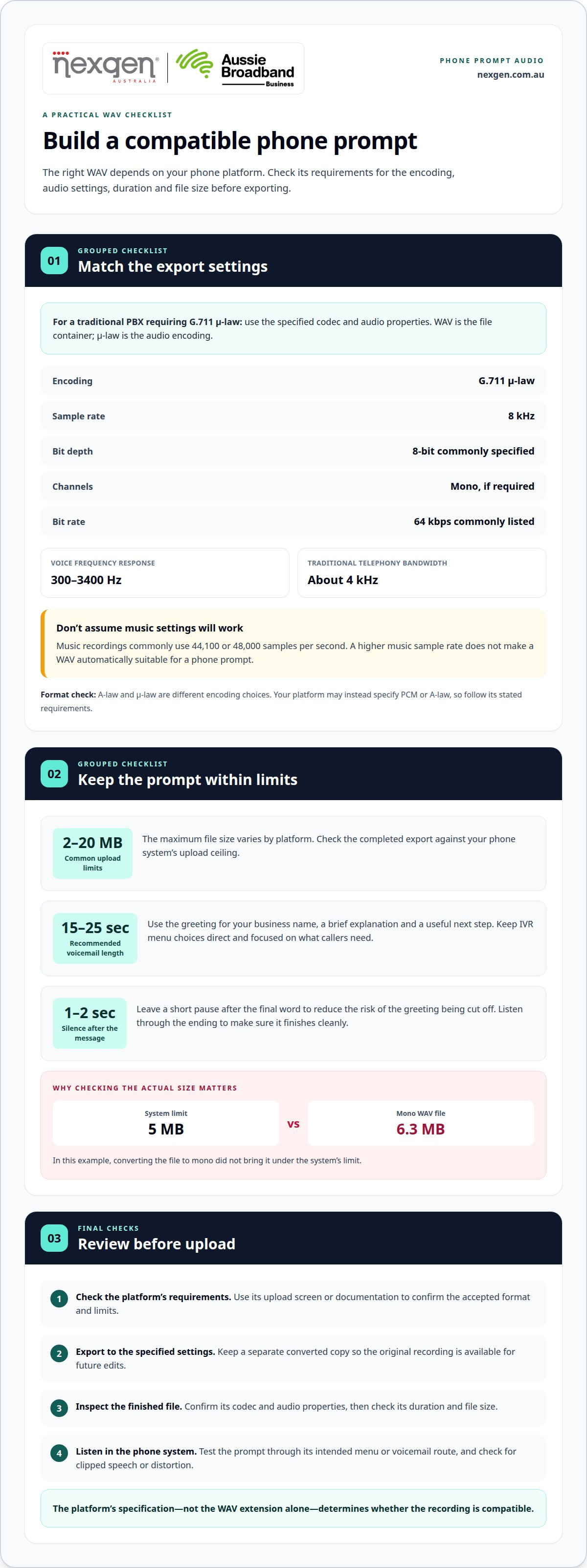
For a traditional PBX, a commonly recommended G.711 μ-law WAV setting is 8 kHz, 8-bit, mono. The encoding matters as much as the WAV extension: WAV describes the file container, while μ-law describes how its audio is encoded. If you’re deciding which .wav file for phone systems to export, identify the required encoding before choosing settings in an audio editor.
G.711 μ-law uses an 8 kHz sample rate, meaning the audio is sampled 8,000 times per second. Its WAV files are commonly specified as 8-bit audio, and a commonly listed bit rate is 64 kbps. These figures describe different properties: the sample rate is how often audio is measured, bit depth is the resolution of each sample, and bit rate describes the data transmitted each second.
The format suits telephone speech rather than full-range music. G.711 μ-law has a frequency response of 300-3400 Hz, while traditional telephony audio is bandwidth-limited to about 4 kHz. A recording made for music commonly uses 44,100 or 48,000 samples per second. Those higher music rates don’t make a file automatically suitable for a phone prompt; the encoding and settings must still match the PBX.
To convert an audio file, open the source in an audio editor, select WAV output, then choose the system’s specified codec and audio properties. For a PBX requiring G.711 μ-law, set the export to 8 kHz, 8-bit and mono μ-law. Save a separate converted copy, preserving the original recording for future edits. Then listen to the exported version to catch clipped speech or distortion.
- Encoding: Select G.711 μ-law when required.
- Sample rate: Choose 8 kHz for this specification.
- Bit depth: Use the commonly specified 8-bit setting.
- Channels: Choose mono if the system requires one channel.
G.711 μ-law is a compression standard first set in 1972. Its role is to represent voice audio using a format suited to telephone transmission. That doesn’t mean every PBX accepts μ-law for every prompt. The platform’s own audio specification determines whether this encoding is appropriate, or whether another option such as PCM or A-law is required.
A-law and μ-law are distinct encoding choices, not alternate names for the same setting. A-law is used in Europe and most of the rest of the world, while μ-law is used in North America and Japan. These regional patterns provide context, but the phone system’s stated requirement should guide your export. Choosing the wrong companding option can leave you with a file that doesn’t match the required audio format.
After exporting, review the file properties instead of relying on its name or extension. Confirm the codec and audio settings, then test playback through the phone system. This final check reveals how the recording sounds in its intended telephony environment.
Greeting length and file-size limits
Greeting duration and file size affect how easily a phone prompt fits your system. Upload limits commonly range from 2 to 20 MB, depending on the platform. A recording may meet the time limit but exceed the storage limit, particularly if it was exported with settings intended for music production rather than phone playback.
For professional voicemail, a commonly recommended length is 15-25 seconds. Use that time for the business name, a brief explanation and a useful next step, such as leaving a message. Longer greetings can delay callers before they reach the information they need. IVR menus may require more spoken content, so keep each choice direct and remove wording that doesn’t help someone select an option.
Duration isn’t the only factor affecting file size. Audio settings also determine how much data a recording contains. A higher sample rate, greater bit depth or extra channel can produce a larger file. Converting stereo audio to mono may reduce its size, for example, but the file could still exceed the phone system’s upload limit.
A practical example illustrates the difference. One phone system accepted WAV files up to 5 MB, while a mono WAV file measured 6.3 MB. The file remained too large after being made mono. That example shows why the completed export’s actual size matters more than assumptions based on its format or channel count.
- Set the message purpose: include only the greeting or instructions callers need.
- Keep voicemail concise: aim for the commonly recommended 15-25-second range.
- Compare file size: check the exported file against the system’s stated upload ceiling.
- Listen to the full recording: review the opening, spoken message and ending.
Leave 1-2 seconds of silence after the final word. This short tail reduces the risk of the greeting being cut off during playback. Keep the pause at the end, rather than inserting it before the message, where it could make callers think the call has stalled. Listen through the final silence to confirm the recording ends cleanly.
If the file exceeds the system limit, first review the spoken content. Remove repeated phrases or unnecessary detail while preserving essential instructions. Then compare the export settings with the phone platform’s requirements. Changing settings without checking compatibility can create a smaller file that no longer suits the system.
Once you’ve prepared the final version, check its duration and file size before uploading. Test playback through the intended menu or voicemail route, since a computer preview doesn’t show how the phone system handles the prompt. Keep the approved export separate from working drafts so the correct recording is ready for upload and future replacement.
How to check upload requirements
Start with the upload screen or system documentation for the exact phone platform. Phone-system file-format requirements were checked on 26 October 2026, but settings can differ between platforms and system versions. The upload instructions matter more than a general WAV recommendation. Record each requirement before preparing audio, so the finished file matches the destination.
Check the following details for every prompt type, including IVR menus and voicemail greetings:
- File container: confirm whether the system accepts WAV, MP3, VOX or another format.
- Audio encoding: look for PCM, μ-law, A-law or a named ADPCM variant.
- Sample rate and bit depth: record the stated rate and audio resolution.
- Channels: identify whether mono or stereo audio is accepted.
- Upload ceiling: note the maximum file size and any duration limit.
Those details work together. A WAV extension alone doesn’t establish the codec inside the file. For example, a system asking for 16-bit PCM sampled at 8 kHz has a different requirement from one specifying 8 kHz, 8-bit, mono μ-law. Treat each setting as a separate field when reading instructions or configuring an export.
Next, distinguish between recording, upload and playback requirements. A phone system may accept one audio format for its prompt library while using another codec during calls. Your exported file must meet the upload format requirements. A playback codec listed in the documentation doesn’t automatically mean the upload must use the same encoding.
Look for system-specific exceptions. A traditional PBX might accept WAV, while a particular function or older platform requires Dialogic ADPCM VOX. VOX files commonly use an 8 kHz sample rate, although some systems require 6 kHz. Dialogic ADPCM, also called DADPCM, encodes audio streams in 4-bit samples. These distinctions make the platform’s own instructions essential.
When the requirements list alternatives, choose one complete combination rather than mixing values across rows. For instance, don’t combine one option’s sample rate with another option’s bit depth unless the instructions allow it. If the documentation names only a codec, check whether its upload guidance specifies a channel count or sample rate elsewhere.
After exporting, compare the file properties with the stated requirements. Upload a test prompt, then listen through the phone system’s actual menu or voicemail path. Check the opening, spoken words and ending for silence, distortion or missing audio. A computer player may handle formats the phone platform rejects, so a successful local preview can’t replace system playback.
If an upload fails, use the error message to identify the mismatch. Check the extension, encoding, rate, bit depth, channels and file size one at a time. Correct the specific setting, re-export the source recording, then test the new file in its intended prompt location.
Naming and delivering separate phone prompts
Give each phone prompt its own audio file and a name that describes its purpose. A file called main-menu.wav is easier to identify than final.wav. Clear names distinguish the greeting callers hear from the menu options that follow.
Use a consistent naming pattern across the prompt set. For example, label files by call stage and function, such as business-hours-greeting.wav, after-hours-menu.wav and voicemail-general.wav. These are examples, not fixed system requirements. Match the labels to your phone system’s terminology, especially if its upload screen uses different names.
Separate files make updates easier to manage. If your opening greeting changes, you can replace its file without editing the menu recording. You can also revise a menu prompt independently when callers need different options. Keeping recordings separate avoids bundling unrelated messages into one long track.
Before delivery, prepare a prompt list linking each filename to its destination. A simple table or document can record the filename, spoken purpose and intended phone-system location. For example, pair after-hours-greeting.wav with the after-hours call flow, not the main business-hours menu. This handover detail reduces ambiguity during upload.
- Use descriptive names: identify the call stage, such as greeting, menu or voicemail.
- Keep names consistent: use the same wording across related files.
- Separate each prompt: provide one audio file for each distinct system message.
- Include a destination: map every filename to its intended menu or call-flow location.
Choose plain, readable filenames. Avoid vague labels such as new, latest or use-this, which become unclear when several versions exist. Don’t rely on a person’s name alone; the file should still make sense if another team member handles the upload. Keep the extension intact so the audio format remains visible.
When replacing an existing prompt, clearly identify the current recording and its replacement. A label such as main-menu-replacement.wav can distinguish a delivery copy from an older file. Once approved and uploaded, store the final version with the prompt map in a shared location. Keep drafts separate to reduce the risk of uploading an outdated message.
Deliver the audio files with their destination list, rather than as an unexplained collection of attachments. Include each prompt’s intended phone-system location and note whether it replaces an existing recording. The receiving person can then match voicemail-general.wav to the correct voicemail greeting instead of guessing from the filename.
Before handover, open each file and listen to the complete recording. Confirm that the spoken message matches the filename and destination, then check that every prompt on the list has a corresponding audio file. This final review catches simple mix-ups, such as a business-hours greeting saved under an after-hours name.
Phone system-specific file format requirements
There isn’t one WAV specification for every phone system. The platform’s upload requirements determine the accepted container, codec and audio settings.
Compatible WAV codecs
A WAV codec is the method used to encode audio inside a WAV file. Common phone-system formats include PCM, G.711 μ-law, A-law and IMA ADPCM, but compatibility depends on the platform. Traditional PBX systems may use 8 kHz, 8-bit, mono μ-law; another system may specify 16-bit PCM at 8 kHz. The extension alone doesn’t identify the codec.
Australian businesses should pay attention to the specified companding format. A-law is used in Europe and most of the rest of the world, while μ-law is used in North America and Japan. Treat this as context, not a substitute for the phone system’s upload specification. Choose the named encoding and its matching sample rate and bit depth.
Effects of incorrect WAV formats
An incorrect WAV format can cause an upload rejection, silence, distortion or unexpectedly poor playback. For example, a system expecting 8 kHz audio may not handle a 44.1 kHz recording as intended. A file can also appear to upload successfully while playing incorrectly through the phone menu.
This matters because callers rely on prompts to understand menu choices and voicemail instructions. Test the uploaded file through its intended call path, not just in a computer player. If playback fails, compare the file’s properties with the platform’s required codec, rate, bit depth and channel count.
For Australian phone systems, the required WAV audio format is system-specific. A common traditional PBX option is 8 kHz, 8-bit, mono μ-law; other systems use 16-bit PCM at 8 kHz or different formats. Follow the platform’s exact specification rather than treating one setting as universal.
Other formats illustrate why the details matter. IMA ADPCM WAV is commonly specified as 8 kHz and 4-bit. Dialogic ADPCM VOX commonly uses 8 kHz, while some systems require 6 kHz; DADPCM encodes audio streams in 4-bit samples. These are distinct requirements, not interchangeable export options.
Modern HD-voice systems use a 16 kHz sample rate. That differs from traditional telephone audio, so an HD-voice setting shouldn’t be applied to an older PBX without a matching requirement. Similarly, G.722.1 supports bit rates of 16, 24 and 32 kbps, while G.729 encodes packets lasting 10 milliseconds. Codec names describe technical behaviour, but they don’t guarantee a phone system accepts that codec for greetings.
WAV format requirements concern audio compatibility, not accessibility or call-recording permissions. For clearer greetings, use concise spoken instructions, distinguish menu options clearly and don’t rely on background music to carry meaning. Recording rules concern captured conversations, so don’t assume a greeting-file specification answers questions about call recording.
If your phone platform’s codec requirements are difficult to map to an export, talk with a phone-system specialist about the right fit for your business.
Nexgen Australia
Nexgen Australia can help if your business is choosing a phone system or reviewing whether its current setup suits your needs. Its Small Business Phone Systems, Office Phone Systems and VoIP Phone Systems support a range of workplace communication requirements.
Prompt compatibility is one practical consideration, alongside how your team handles incoming calls, menus and voicemail. Discussing your current system and how staff answer calls can help clarify what to look for in a phone setup.
Contact Nexgen Australia to discuss your business phone system requirements.
Make your next phone-system decision with confidence
The right prompt format is one part of a phone system that fits how your team works. If you’re still weighing up which .wav file your phone system needs, start with the platform’s requirements, then consider how staff manage incoming calls, menus and voicemail. Clear decisions now can make future prompt updates easier to plan.
Nexgen Australia offers Small Business Phone Systems, Small Business VoIP Solutions and Office Phone Systems. If you’re reviewing your current setup or planning a change, these options can help focus the conversation on your organisation’s calling needs.
Contact Nexgen Australia for help with your business phone-system requirements. A considered next step can help you move forward with greater clarity.
Frequently Asked Questions
What File Format Does My Phone System Need?
Your phone system needs the format stated in its prompt-upload requirements. A WAV file can contain different audio encodings, so the extension alone doesn’t identify whether it will work. For example, one system may request PCM, while another specifies G.711 μ-law or A-law. Treat the upload instructions as a complete set of requirements, including any channel or size limits.
What does 8 kHz, 16-bit, mono mean?
It describes three audio properties: 8 kHz is the sample rate, 16-bit is the audio resolution, and mono means one audio channel. Think of it as a recording recipe rather than a file type. For example, an export tool may let you set all three independently. A system requesting these settings needs each value to match, not merely a WAV extension.
What is a u-law WAV file?
A μ-law WAV file is audio stored in a WAV container and encoded using μ-law, a method associated with G.711 telephone audio. The initial G.711 μ-law compression standard was set in 1972. In an export menu, look for μ-law or G.711 μ-law as the encoding choice. Selecting WAV alone doesn’t apply μ-law encoding.
Should phone system WAV files be mono or stereo?
Use mono when the phone system requires one channel; stereo contains separate left and right channels. A spoken prompt, such as a caller menu, usually doesn’t need separate left and right audio. Stereo can also increase file size compared with a matching mono recording. Follow the system’s channel requirement and listen after exporting to catch any changes in balance or clarity.
What sample rate and bit depth should WAV prompts use for VoIP PBX systems?
Use the exact sample rate and bit depth required by your VoIP PBX. A common PCM WAV specification is 16-bit audio sampled at 8 kHz, while modern HD-voice systems use a 16 kHz sample rate. These values aren’t interchangeable defaults. For instance, don’t select 16 kHz simply because it appears higher; match the intended system and prompt-upload format.
How can I check whether a WAV file is compatible with a phone system?
Compare the file properties with the system’s upload specifications, then test it through the prompt’s actual call path. Check the encoding, sample rate, bit depth, channels and file size. A media player preview confirms that the recording opens, but not that the phone platform accepts it. A test upload can reveal rejected files or playback problems before wider use.